
Post from the order
Click Post to SD on any order. TruxCRM builds the Super Dispatch load from the order: route, ZIP codes, vehicles, carrier pay, payment terms, dates and contacts. Two clicks and it's on the board.

TruxCRM sends your order to the Super Dispatch load board in two clicks, then keeps the order up to date as a carrier books, picks up and delivers it. Nothing is retyped and nobody switches tabs.
Posting a car to a load board usually means copying the route, vehicle, price and dates from your CRM into another website, by hand, for every order. Then you check that website again and again to see if a carrier took it, and type the carrier's details back into the CRM. And every load on two boards is a chance to book it twice.
Click Post to SD on any order. TruxCRM builds the Super Dispatch load from the order: route, ZIP codes, vehicles, carrier pay, payment terms, dates and contacts. Two clicks and it's on the board.
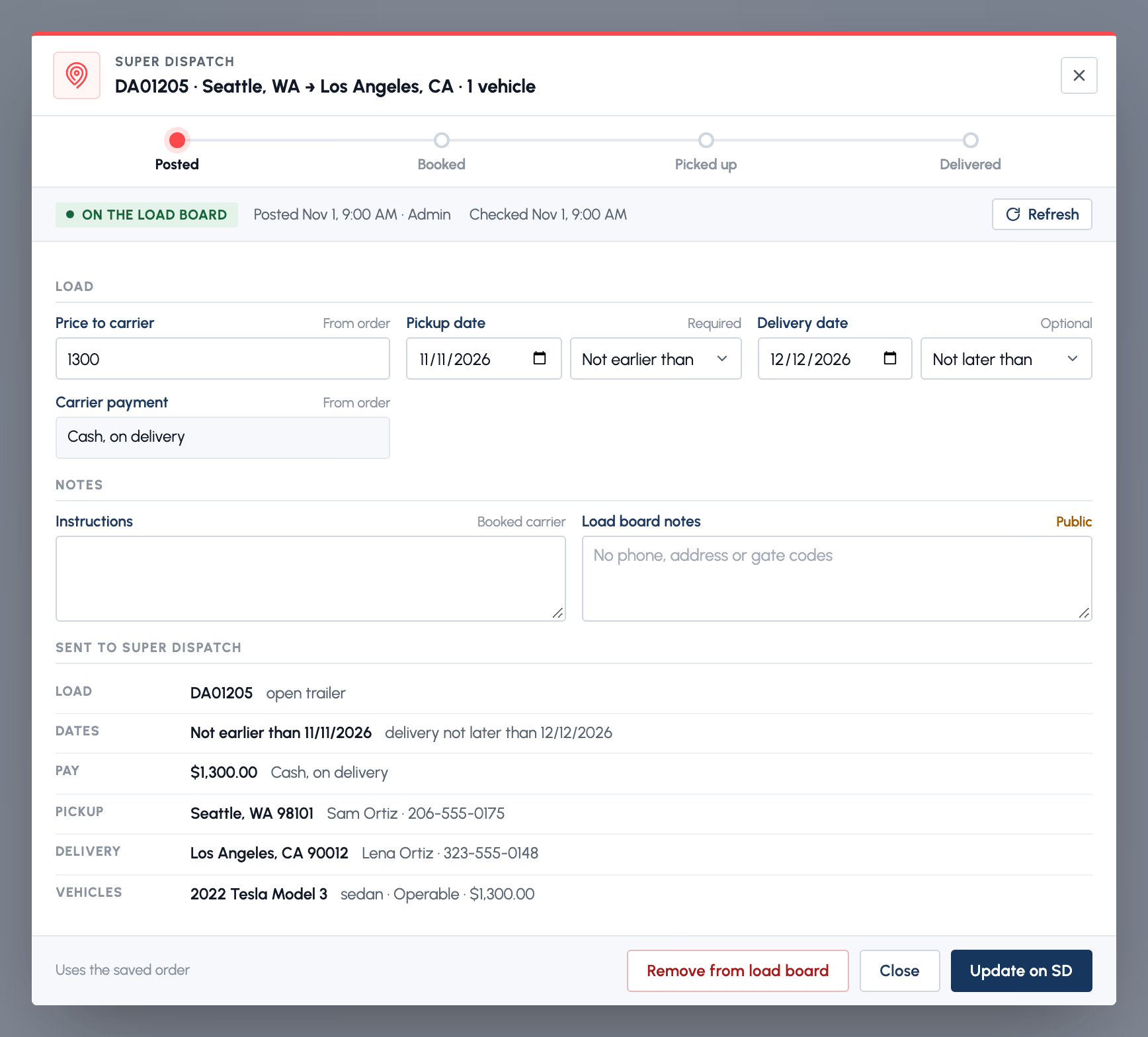
Before posting you see the whole load as Super Dispatch will get it. Change the price to the carrier, the pickup and delivery dates (exactly, not earlier than, not later than or estimated), instructions for the booked carrier, and public load board notes, just for this post, without touching the order. Your internal notes are never sent.
If something Super Dispatch needs is missing, such as a ZIP code, a vehicle's VIN or year, make and model, or a price, TruxCRM lists it in plain words and holds the post until it's fixed.
Update on SD changes the same Super Dispatch order and the same vehicles, so you never end up with a duplicate load. Remove from load board takes it off the board but keeps it in your Super Dispatch account to post again later. Cancel on SD cancels it when the load isn't happening.
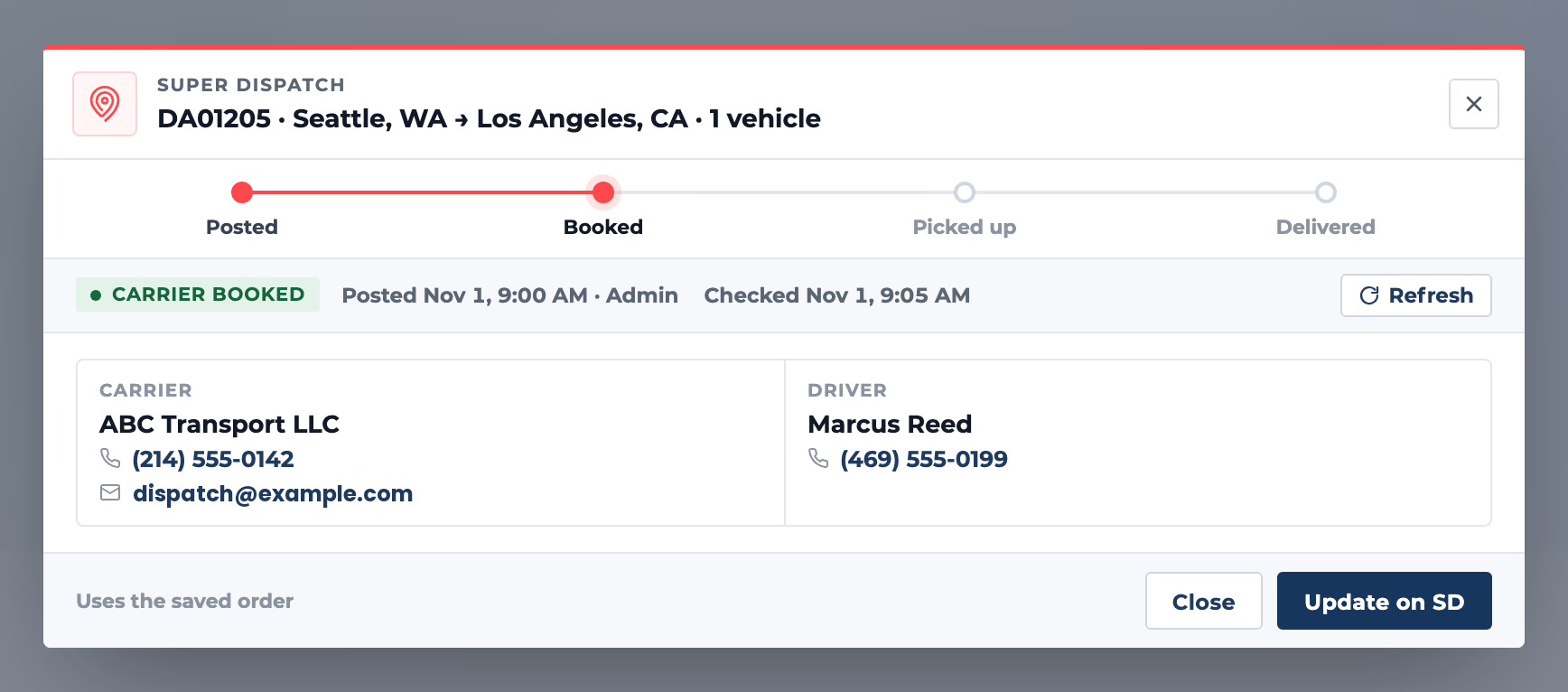
When a carrier books, picks up or delivers the load, Super Dispatch tells TruxCRM right away. The order's status, carrier name, driver, driver phone and dispatched date fill in by themselves, and you get a notification in the CRM and on your phone.
Live updates never overwrite a carrier name someone typed, never move a status someone set by hand, and never move a load backwards. If a carrier drops a booked load, the order is marked Carrier Canceled so you know to find another carrier.
Each order's Super Dispatch panel shows where the load is: Posted → Booked → Picked up → Delivered, with the carrier's and driver's phone and email one tap away.
Post the same load on both boards. When a carrier books it on Super Dispatch, TruxCRM removes it from Central Dispatch for you. When a carrier accepts your Central Dispatch dispatch, TruxCRM takes it off the Super Dispatch board. If it can't, it tells you to do it by hand.
A double click can't post the same load twice. If Super Dispatch doesn't answer in time, the order is marked Needs a check and Refresh looks the load up on Super Dispatch before anything is sent again.
An order that is still on the Super Dispatch board can't be deleted by mistake. TruxCRM asks you to remove it from the board first.
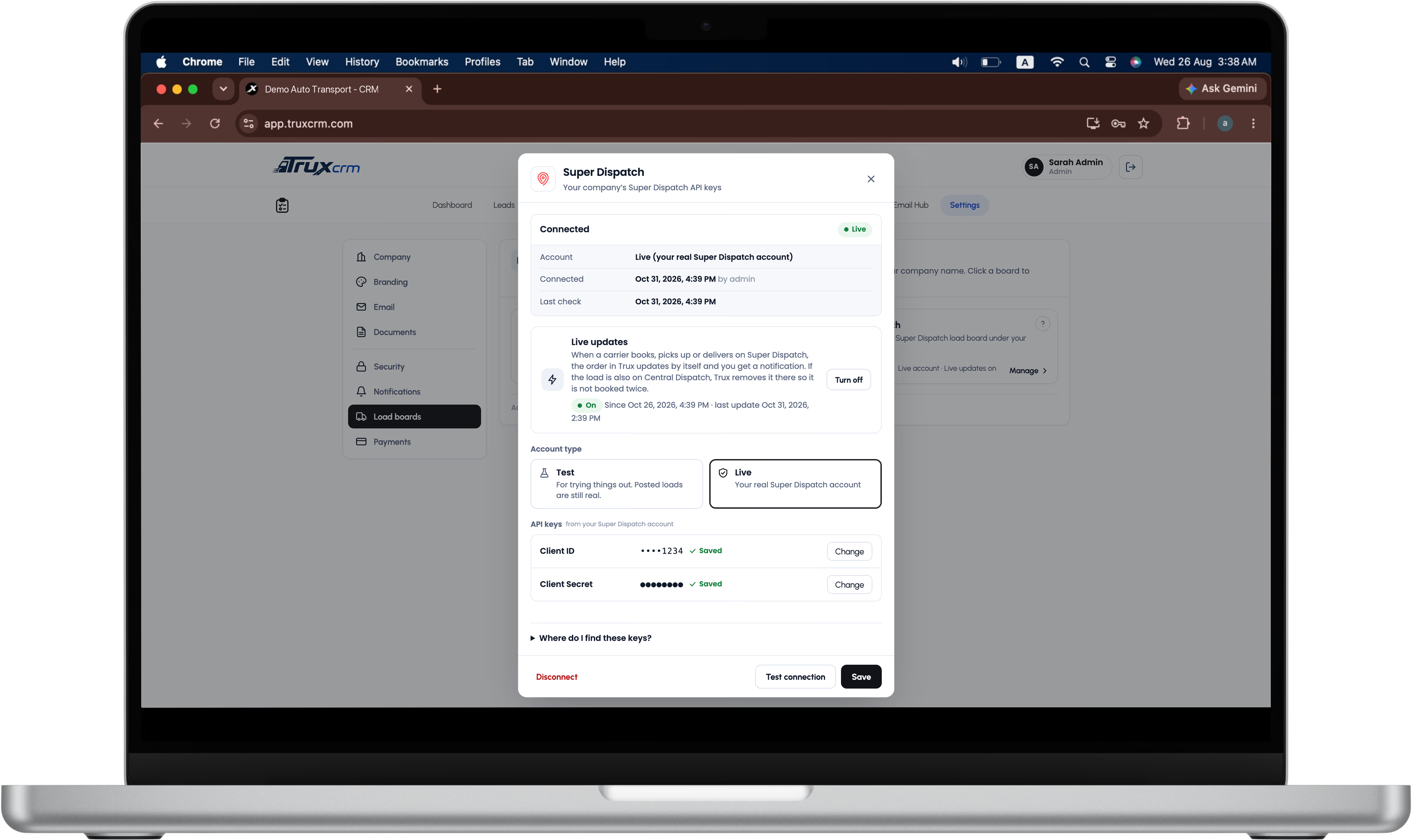
An admin opens Settings → Load boards → Super Dispatch and adds your company's Super Dispatch API keys. TruxCRM checks them with Super Dispatch before saving and stores the secret encrypted. It is never shown again.
Anyone on your team opens an order, clicks Post to SD, checks the preview and posts.
One switch in the same settings window lets Super Dispatch tell TruxCRM about bookings, pickups and deliveries.
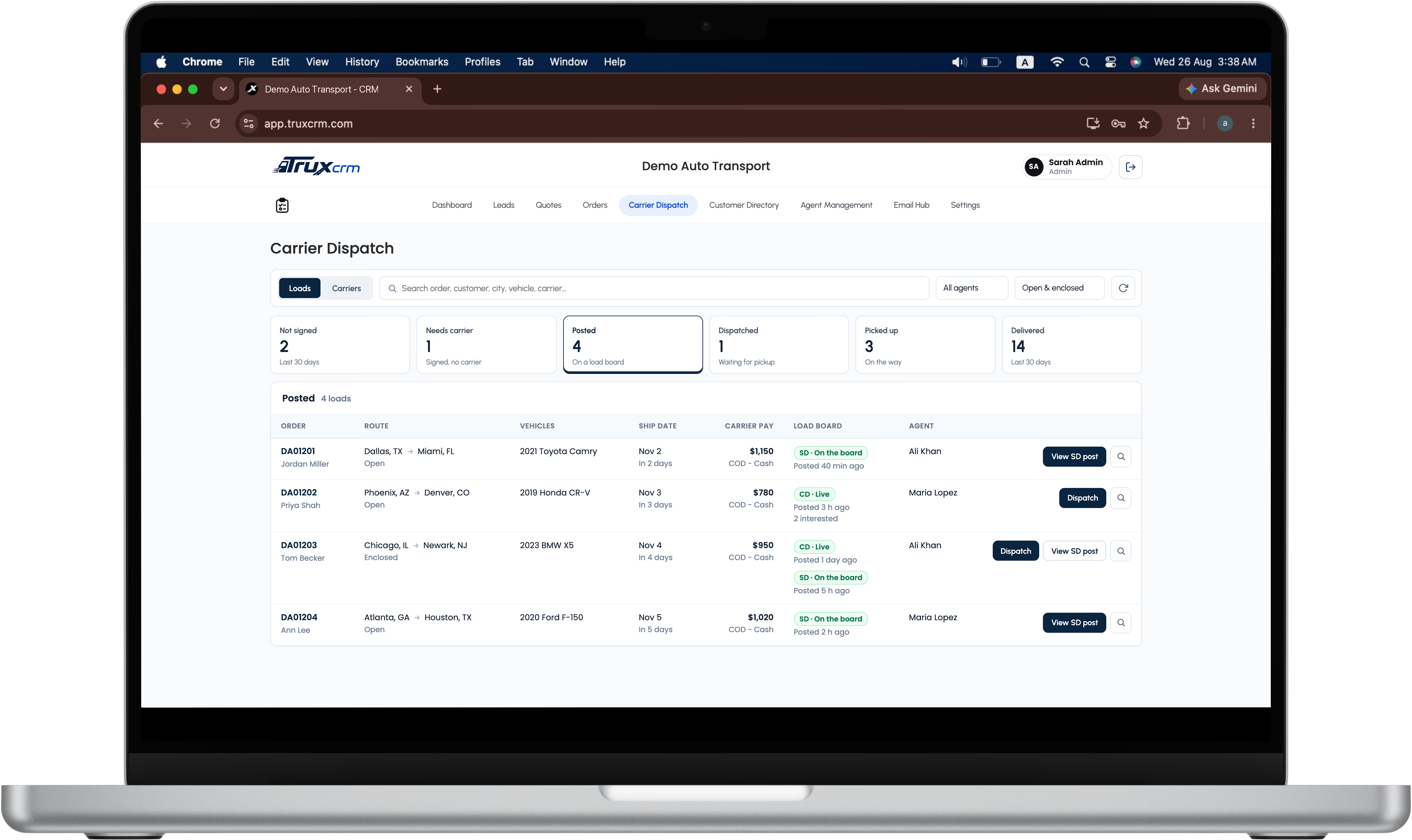
The load moves through the Carrier Dispatch board by itself: Posted, Dispatched, Picked up, Delivered.
TruxCRM connects to your Super Dispatch account with API access, using the API keys Super Dispatch issues to it. Loads post under your company, in your account.
Each company connects its own account. TruxCRM never posts from a shared account.
Admins connect Super Dispatch; agents can post from the orders they work on.
Every post, update, removal and cancellation is recorded in Change Logs with who did it.
Live updates are optional. Without them, Refresh on the order brings in the same information on demand.
Works alongside the Central Dispatch integration. Companies on both boards see a Post to CD and a Post to SD button side by side.
Yes. TruxCRM posts to Super Dispatch through your own account, using API keys from that account.
No. TruxCRM keeps the Super Dispatch order and vehicle IDs and always updates that same order. A double click or a slow connection can't post a load twice.
With live updates on, the order changes to Dispatched and the carrier, driver and dispatched date fill in by themselves. You get a notification, and the load moves to Dispatched on the Carrier Dispatch board.
Yes. Price, dates and notes can be changed in the posting panel for that post only. The order itself stays as it is.
No. Internal notes never leave TruxCRM.
Yes. When it's booked on one board, TruxCRM removes it from the other so it isn't booked twice.
Yes. An admin connects the account once; after that, agents can post from orders.
Super Dispatch and Central Dispatch are trademarks of their respective owners. TruxCRM is an independent product and is not affiliated with or endorsed by Super Dispatch.
Book a demo and we'll post a sample load to Super Dispatch from TruxCRM while you watch.